Official Driver Download

Access FM220 L1 RD Service Driver Download

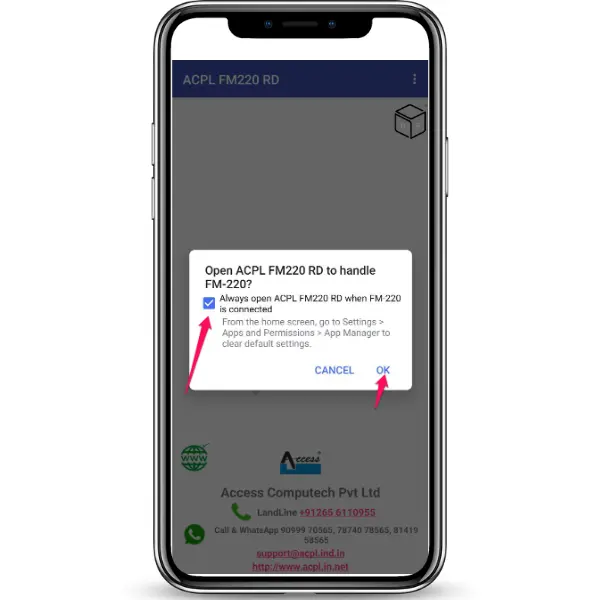
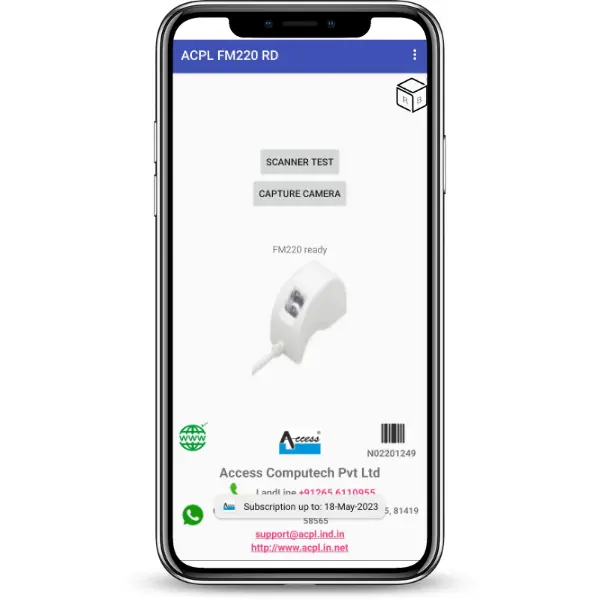
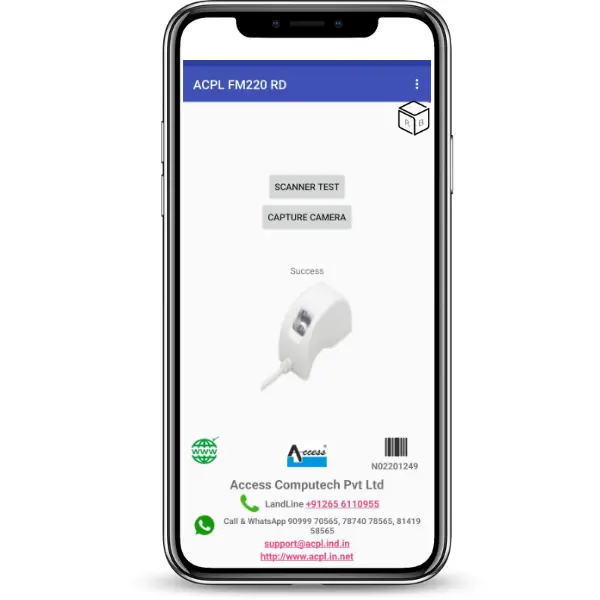
Download the Access Startek FM220U L1 RD Service driver on Windows & Android, for seamless integration with the Aadhaar Authentication API 2.5 and E-KYC API 2.5 and for secure biometric identification. The driver is easy to install in your system and it assures good performance during setup. The Access FM220U fingerprint scanner is STQC-certified and the RD Service software supports all government and financial applications such as Ayushman Bharat, PM SVANidhi and Fino Bank (Branch Use Only). The RD software is also compatible with Android devices as well, providing flexibility within the fields and remote authentication. Rdservice.in provide a complete set of RD drivers and updates along with tools to assist the process of installation. To download the Startek FM220U L1 RD Service software on Windows or Android, click on the following link.

Official File Virus Checked Latest Version Free Support
EXE

Startek FM220 l0 RD Service Software - Windows

v Updated 21 Jul 2024
Download
EXE

Startek FM220 L1 RD Service Software - Windows

v Updated 21 Jul 2024
Download
EXE

Access FM220 L1 RD Service Setup

v1.3.5 Updated 19 May 2026
Download

Compatibility

Windows

Windows 10 / 11

32-bit & 64-bit

Android

Android 7+

All major manufacturers

USB Connected

Plug & play support

UIDAI Ready

STQC certified device

WhatsApp Help Call Support
Product Overview
Technical Specifications

The Access FM220U RD Service offers the most efficient Aadhaar-based secure fingerprint authentication. The gadget, being fully in compliance with Aadhaar authentication API 2.5 and E-KYC API 2.5, ensures accuracy at its best and delivers fast processing. For performance to be ensured at its optimal, it is mandatorily required that the driver setup will have to be downloaded and installed.


This is the latest version of the Access driver FM220U (L1) RD Service. This Aadhaar-based fingerprint authentication device is highly secured, fast, and wholly compliant with the Aadhaar authentication API 2.5 and E-KYC API 2.5. It ensures the most accurate process along with maximum processing speed. To make it work, a computer would require downloading and setting up the driver setup for your computer.

Start with maximizing your experience of the support tools to test all RD drivers for the application at hand. You can start with new devices. Startek FM220U RD Service Software download links are available for both Windows and Android. Do remember that your computer will always work on updated software so you can enjoy the services that come with Aadhaar authentication.

Features and Compatibility

  1. Platform Support:

    • Windows 8 (32-bit & 64-bit)

    • Windows 10 (32-bit & 64-bit)

    • Windows 11 (32-bit & 64-bit)

  2. Usage and Applications:

    • Versatile Applications: Ideal for diverse tasks such as aid distribution tracking, bank transactions, and welfare management.

    • Mobile Supports: The device supports all android applications. What adds to this support is also that it supports Aadhaar eKYC and even activation of SIM.

  3. Ease of Use:

    • it is accompanied by an easy PDF install guide

    • The application is versatile, and deployable in diverse industries cutting across banks, welfare and even Telecoms.

How to Download and Install Rd Service for Access FM220u RD L1

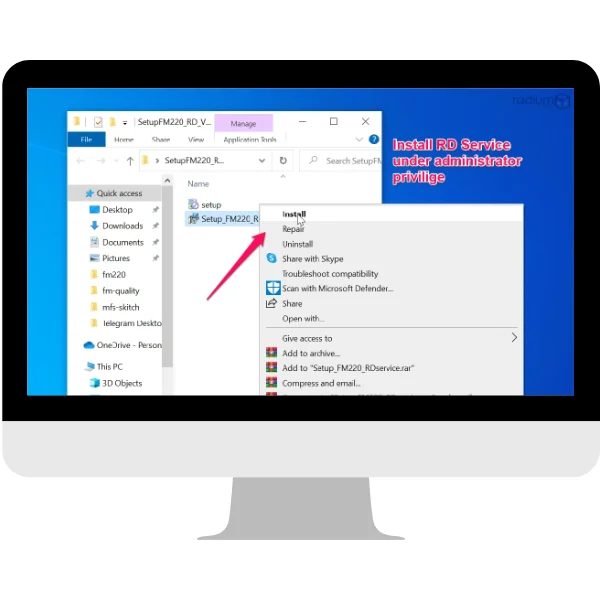
  1. Download Access FM220U RD Service for Windows: Compatible with Windows 8, 10, and 11.

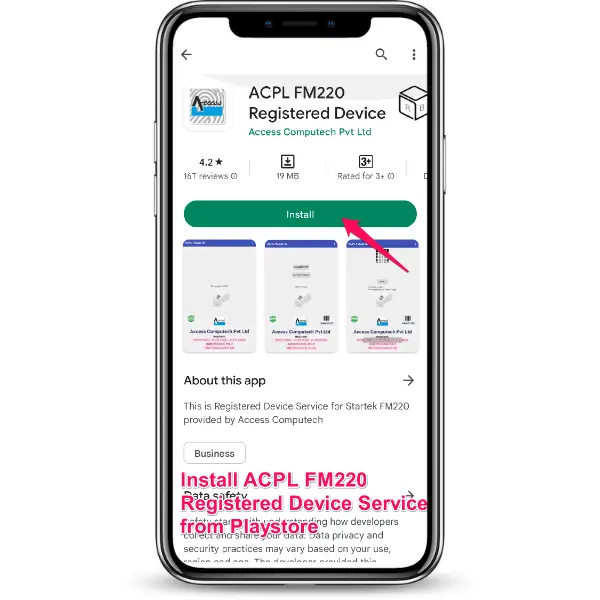
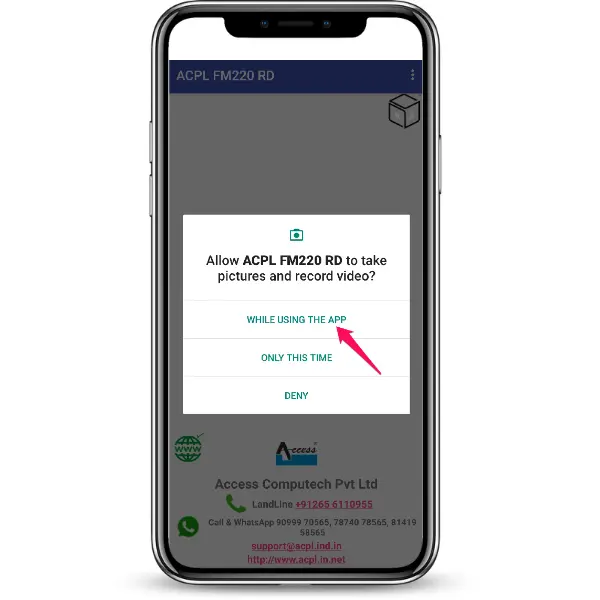
  2. For Android: Install the Startek RD Service Software to enable mobile biometric authentication.

  3. Keep Software Updated: Regularly updating your system software and drivers will ensure smooth Aadhaar authentication and the best performance from your Access FM220U (L1) device.

For a comprehensive experience, download the updated Startek drivers for both Windows and Android. By keeping your Startek FM220U RD Service driver up-to-date, you ensure a seamless integration and maximum security across all supported applications.
Installation Process
Access FM220 L1 RD Service Windows driver installation, step 1: First, download the RD Service package and extract the downlo...
Step 1 of 16

Step 1: First, download the RD Service package and extract the downloaded zip file to a folder on your computer.

Access FM220 L1 RD Service Windows driver installation, step 2: Double-click on the "“Setup_FM220” and select install." The i...
Step 2 of 16

Step 2: Double-click on the "“Setup_FM220” and select install." The installation wizard will appear on the screen. Click "Next" to proceed.

Access FM220 L1 RD Service Windows driver installation, step 3: Reverify that the pointer is on Everyone.After successful ins...
Step 3 of 16

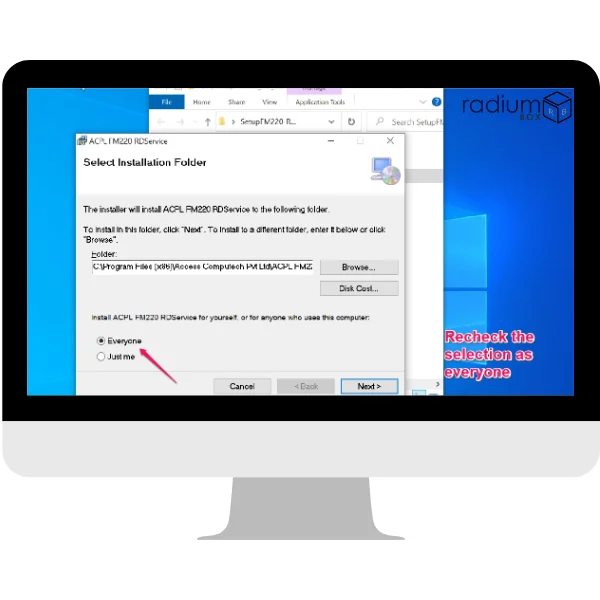
Step 3: Reverify that the pointer is on Everyone.After successful installation of RD Service, RD Support Tools need to be installed.

Access FM220 L1 RD Service Windows driver installation, step 4: ACPL FM220 RD Service Support Tool installation can be done b...
Step 4 of 16

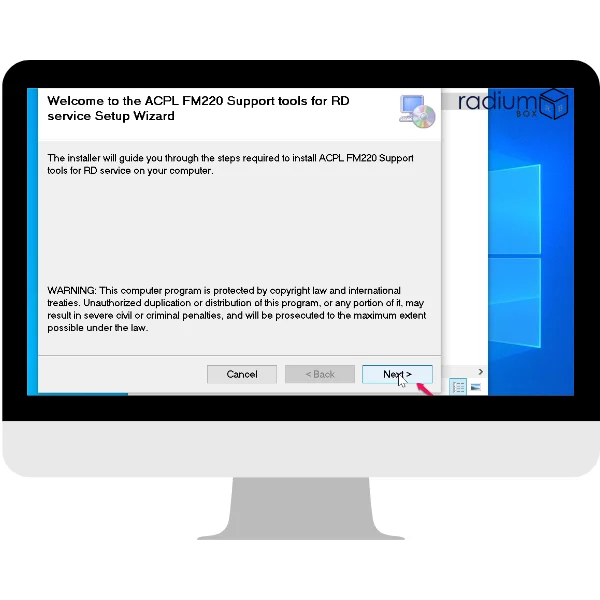
Step 4: ACPL FM220 RD Service Support Tool installation can be done by clicking "Next".

Access FM220 L1 RD Service Windows driver installation, step 5: The installer will start installing the driver for Startek FM...
Step 5 of 16

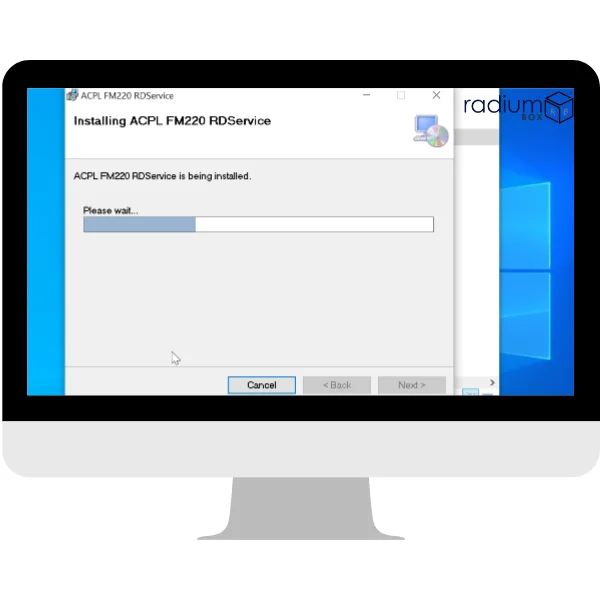
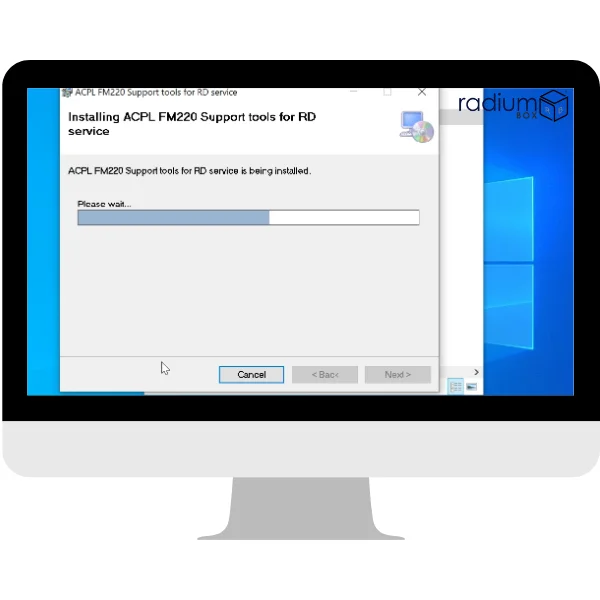
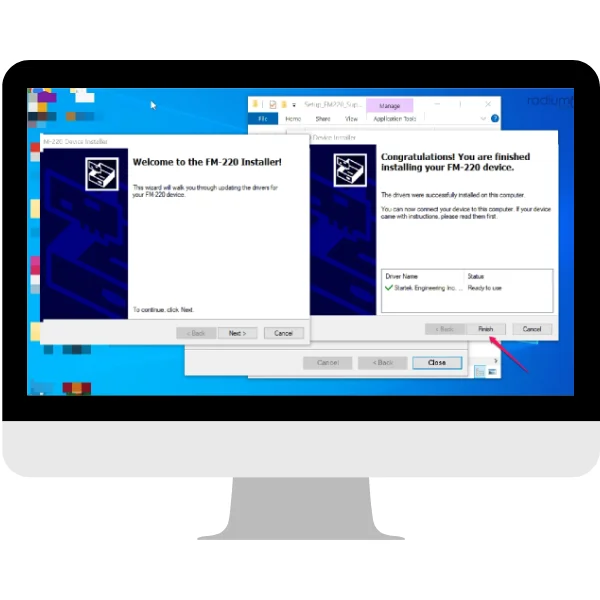
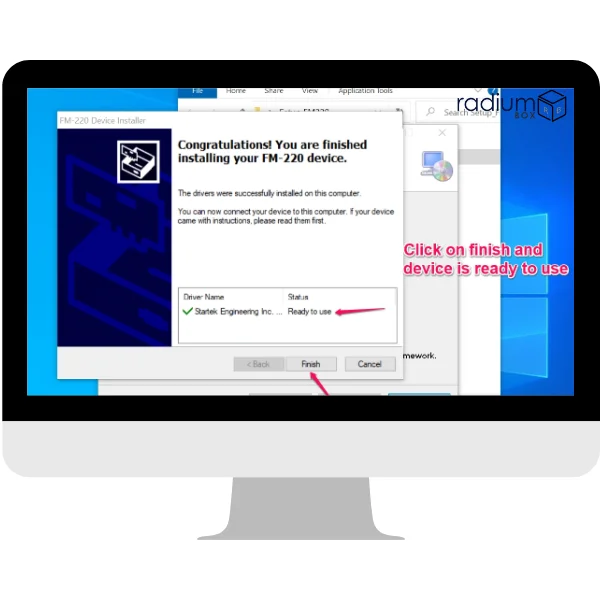
Step 5: The installer will start installing the driver for Startek FM220. Once the installation is complete, click "Finish" to exit the wizard.

Access FM220 L1 RD Service Windows driver installation, step 6: Once the installation is complete, click "Finish" to exit the...
Step 6 of 16

Step 6: Once the installation is complete, click "Finish" to exit the installer.

Access FM220 L1 RD Service Windows driver installation, step 7: Restart your computer to complete the installation.
Step 7 of 16

Step 7: Restart your computer to complete the installation.

Access FM220 L1 RD Service Windows driver installation, step 8: After the computer restarts, connect your Startek FM220 devic...
Step 8 of 16

Step 8: After the computer restarts, connect your Startek FM220 device to your computer and start using it with the RD Service.

Access FM220 L1 RD Service Windows driver installation, step 9: First, download the RD Service package and extract the downlo...
Step 9 of 16

Step 9: First, download the RD Service package and extract the downloaded zip file to a folder on your computer.

Access FM220 L1 RD Service Windows driver installation, step 10: Double-click on the "“Setup_FM220” and select install." The...
Step 10 of 16

Step 10: Double-click on the "“Setup_FM220” and select install." The installation wizard will appear on the screen. Click "Next" to proceed.

Access FM220 L1 RD Service Windows driver installation, step 11: Reverify that the pointer is on Everyone.After successful in...
Step 11 of 16

Step 11: Reverify that the pointer is on Everyone.After successful installation of RD Service, RD Support Tools need to be installed.

Access FM220 L1 RD Service Windows driver installation, step 12: ACPL FM220 RD Service Support Tool installation can be done...
Step 12 of 16

Step 12: ACPL FM220 RD Service Support Tool installation can be done by clicking "Next".

Access FM220 L1 RD Service Windows driver installation, step 13: The installer will start installing the driver for Startek F...
Step 13 of 16

Step 13: The installer will start installing the driver for Startek FM220. Once the installation is complete, click "Finish" to exit the wizard.

Access FM220 L1 RD Service Windows driver installation, step 14: Once the installation is complete, click "Finish" to exit th...
Step 14 of 16

Step 14: Once the installation is complete, click "Finish" to exit the installer.

Access FM220 L1 RD Service Windows driver installation, step 15: Restart your computer to complete the installation.
Step 15 of 16

Step 15: Restart your computer to complete the installation.

Access FM220 L1 RD Service Windows driver installation, step 16: After the computer restarts, connect your Startek FM220 devi...
Step 16 of 16

Step 16: After the computer restarts, connect your Startek FM220 device to your computer and start using it with the RD Service.

Frequently Asked Questions

How can you test your Access FM220 L1 device?

Right-click the ACPL FM220 Registered Device Tools, and choose Test Capture from the context menu. In the pop-up message, a small window will appear with a "Capture Finger" button to complete the test.

Where to download the latest Access FM220 L1 Driver?

You can download the latest Access FM220 L1 driver from rdservice.inclick here to download the driver.

What should I do if my Access FM220U is not working after installation?

If the installation process fails, make sure that you have downloaded the correct driver that matches your device model and RD services. If the issue persists contact our support team for free remote assistance, Call Us at: +91 97026 84343 or Mail Us at: [email protected]

Is the Access FM220 driver compatible with all versions of Windows?

TheAccess FM220 driver is compatible with Windows 10, and above. Check the site for specific OS requirements.
Download Driver

Talk to us?